
Parted Magic NVMe Drive Manager: Change an NVMe Drive to 4096-Byte Sectors
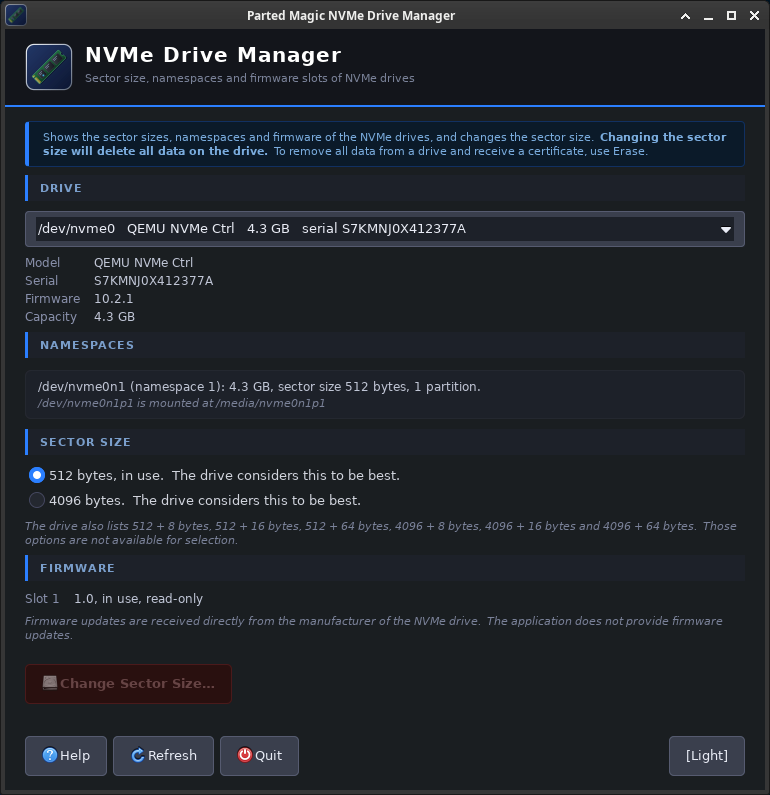
Parted Magic NVMe Drive Manager shows each NVMe drive in the computer: its namespaces, the sector sizes it supports, the sector size it uses now, and its firmware slots. It can change a drive’s sector size between 512 and 4096 bytes.
Changing the sector size deletes everything on the drive. It is not a certified erase: to erase a drive and get a certificate, use Erase. NVMe Drive Manager does not update firmware, and it does not create or remove namespaces.
NVMe Drive Manager is part of Parted Magic, in the Erase menu. Like the other Parted Magic tools, it runs from the same USB drive.
NVMe Drive Manager Video Walkthrough
On This Page
- Sector size
- Namespaces
- Firmware slots
- When a change is refused
- After a change
- The log
- In a terminal
- When something goes wrong
Sector Size
The sector size is the smallest amount of data the drive reads or writes. Most NVMe drives ship with 512-byte sectors, and many can also use 4096 bytes. The drive lists the sector sizes it supports (its LBA formats) with its own performance rating for each: best, better, good or degraded. The window shows both.
NVMe Drive Manager offers two sector sizes, 512 and 4096 bytes. A drive that supports only one of them cannot be changed to the other.
- Which size to pick. If you do not know whether your system works with 4096-byte sectors, choose 512 bytes. Choose 4096 bytes when you know your operating system supports them. A partition table is made for one sector size, so a drive whose sector size changed is blank and needs new partitions before it can be used. Make them with VisParted.
- Sizes with metadata. Drives taken from servers and storage systems sometimes use more bytes per sector than 512 or 4096, for example 4096 + 8. Linux shows such a drive as 0 bytes when it cannot use the format. NVMe Drive Manager recognizes these formats and can change the drive to a standard 512-byte or 4096-byte format, for use in a desktop computer.
- What a change does. The new sector size is applied with an NVMe Format NVM command, without its secure erase option. All data in the namespace is destroyed. On drives where a format applies to all namespaces, every namespace is formatted, and the window says so.
Namespaces
A namespace is a part of an NVMe drive that Linux shows as a separate disk: /dev/nvme0n1, /dev/nvme0n2 and so on. Nearly every NVMe drive has a single namespace that covers its whole capacity. Drives from servers may have several namespaces, or capacity that is in no namespace. The window shows each namespace with its name, size and sector size, and any capacity that is in no namespace. The last number in a device name is not always the namespace number, so the window shows both.
Firmware Slots
An NVMe drive keeps its firmware in one to seven slots. The window shows how many slots the drive has, the firmware revision in each, and which one is in use. Some drives keep slot 1 read-only, and the window says so. It also shows whether new firmware is waiting to be activated at the next restart.
Firmware updates come from the drive’s maker. NVMe Drive Manager does not update firmware.
When a Change Is Refused
Nothing may be using the drive when its sector size changes. The window names what is using it:
- The running system: Parted Magic was started from this drive, or the running system is on it.
- Mounted: a partition on the drive is mounted. Unmount it first, for example in Parted Magic Mount, and try again.
- Swap: a swap partition on the drive is in use. Turn it off with
swapoff /dev/nvme0n1p2(your partition’s name) and try again. - Encryption, LVM or RAID: Linux has the drive open through an unlocked encrypted volume, an LVM volume group or a RAID array. Close it first.
- In use: another program has the drive open. Close it and try again.
After a Change
NVMe Drive Manager reads the drive again, and the window shows its sector size now. It also asks Linux to read the drive again. If Linux still shows the old sector size, restart the computer before you use the drive.
The Log
Each change writes a log to /home/partedmagic, or to the folder given with --log-dir, named NVMe-Drive-Log-<drive>-YYYY-MM-DD-HHMMSS.txt. It holds:
- the computer’s maker and model
- the drive’s model, serial number and firmware version
- the sector sizes before and after the change, as read from the drive
- the partitions that were on the drive
- the commands that ran, with their output
- the result
In a Terminal
pmagic_nvme_manager                                      # open the window
pmagic_nvme_manager --list                               # every NVMe drive: namespaces, sector sizes, firmware slots
pmagic_nvme_manager --set-sector-size 4096 /dev/nvme0n1  # change the sector size; asks for yes first
pmagic_nvme_manager --test                               # the window with made-up drives; no drive is touched
pmagic_nvme_manager --log-dir DIR                        # save the logs to DIR
pmagic_nvme_manager --manual                             # the manual
--list works over SSH. --set-sector-size takes its yes from the keyboard or as one line of standard input. It returns 0 when the drive now uses the new size, 1 when the change failed, 2 when nothing changed because the change was refused, canceled or not possible, and 3 when the drive uses the new size but the computer needs a restart before the drive is used.
When Something Goes Wrong
A drive is not listed
Only NVMe drives connected through PCIe are listed. An NVMe drive in a USB enclosure shows up as a USB disk, and its sector size cannot be changed through USB. Put the drive in an M.2 slot, or in an M.2-to-PCIe adapter card in the computer.
The drive did not answer
The drive did not respond to NVMe Drive Manager. Shut the computer down, start it again, and press Refresh.
Get Parted Magic NVMe Drive Manager
Parted Magic NVMe Drive Manager comes with Parted Magic, along with Erase, VisParted, Opal Drive Manager and Clone. One price covers unlimited disks and unlimited computers.