Parted Magic Secure Boot: View, Back Up and Change Secure Boot Keys
Parted Magic Secure Boot displays the keys and certificates used by your computer’s firmware to determine what applications can run at boot time. It can back up all of those keys and certificates. The tool also adds Microsoft’s 2023 certificates and its current revocation list, creates Machine Owner Key requests for shim, and loads your own keys onto a computer.
The tool is part of Parted Magic. It is available from the Desktop and the System menu. Like the other tools from Parted Magic, it runs off the same USB drive.
Secure Boot Video Walkthrough
The video is nine and a half minutes long and covers every feature. Most of it was filmed on an Intel NUC with the keys it had from the factory. The Machine Owner Keys and Your Own Keys chapters were filmed in a virtual machine. The chapter list is on YouTube.
On This Page
- What Secure Boot keeps
- The Overview
- Key Lists
- Microsoft’s 2023 certificates
- Backups and the log
- Machine Owner Keys
- Your own keys
- In a terminal
- When something goes wrong
- Secure Boot FAQ
What Secure Boot Keeps
A computer’s Secure Boot is managed through its UEFI firmware. Before the firmware executes a boot program, it compares the program with four lists:
| List | What it holds |
|---|---|
| PK, the Platform Key | The owner’s key. On most computers the owner is the maker. Whoever holds the private half of this key decides who may change the KEK. |
| KEK, the Key Exchange Keys | The keys allowed to change db and dbx. |
| db, allowed signatures | The certificates and program hashes the firmware will start. |
| dbx, revoked signatures | The programs the firmware refuses to start, even when db allows them. |
Parted Magic and most Linux distributions start through shim, a small boot application signed by Microsoft. shim maintains two lists of its own: MOK, which contains the keys and hashes that shim trusts (on top of those contained within db), and MOKX, which contains the keys and hashes that shim does not trust.
The Overview
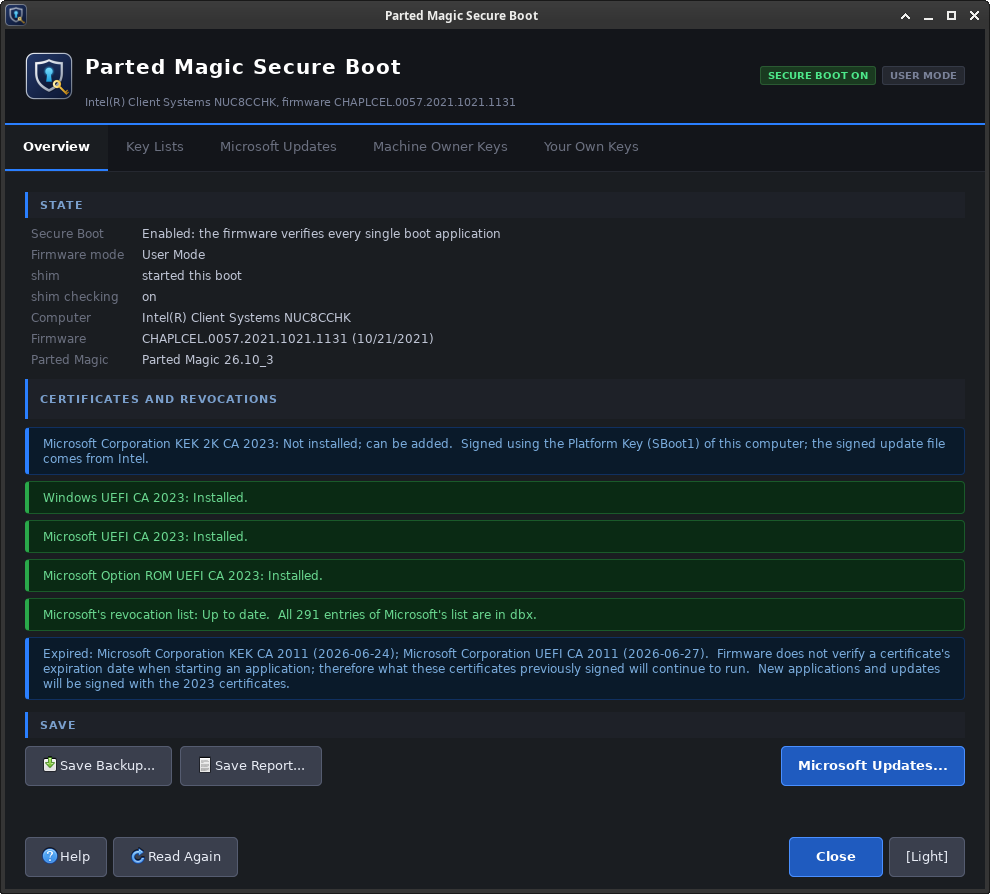
The Overview comes first. It displays whether Secure Boot is enabled, the current state of the UEFI firmware (User Mode or Setup Mode), whether shim started this boot, and whether shim is currently verifying digital signatures. It also includes the name of the PC, the firmware version and the Parted Magic version.
Below that are the findings. They show which of Microsoft’s 2023 certificates are present on the PC, how many entries from Microsoft’s revocation list are missing, and which certificates have expired. At the bottom are three buttons: Save Backup, Save Report and Microsoft Updates.
Key Lists
Key Lists shows you the PK, KEK, db, dbx, MOK and MOKX lists on your system, with the number of entries in each. Also, if the firmware is keeping factory copies of these lists, they will show up in Key Lists too.
You can click an item in the list to see who issued it, its dates, the serial number associated with it, and its SHA-1 and SHA-256 fingerprint values. When you select a program that Microsoft has revoked and described, the entry shows Microsoft’s description of the revocation, which may include the file name and the date of the revocation. Export allows you to save a copy of a selected entry to a file.
Add and Remove make requests to add or remove MOK and MOKX entries. After you have opened your own keys, Add and Remove will also change PK, KEK, db and dbx. Your factory key lists are always read-only.
Microsoft’s 2023 Certificates
Microsoft has digitally signed its Windows boot managers, shim and many other boot applications with certificates from 2011. Two of those certificates expired in June 2026. Firmware will execute a program without checking whether the certificate that signed it has expired, so those programs continue to run. New boot programs and all later updates are signed with Microsoft’s 2023 certificates. A computer that does not have the 2023 certificates cannot execute a program that was signed only with them.
| Certificate | List | What it is for |
|---|---|---|
| Microsoft Corporation KEK 2K CA 2023 | KEK | Lets the firmware accept Microsoft’s future db and dbx updates. |
| Windows UEFI CA 2023 | db | Signs Windows boot managers. |
| Microsoft UEFI CA 2023 | db | Signs other makers’ boot programs, such as shim, so Linux and Parted Magic too. |
| Microsoft Option ROM UEFI CA 2023 | db | Signs the firmware on graphics, network and storage cards. |
Computers running Windows obtain these certificates via Windows Update. Computers running other operating systems, or that did not get this update, can receive them through Microsoft Updates, which uses files provided with Parted Magic, so no internet connection is required.
Microsoft Updates lists each of its items and the key that signs each one. The firmware will check this signature against the keys it currently stores prior to accepting the file. These files can only add new entries and cannot remove or replace existing entries.
Each KEK 2023 file is signed with one PC manufacturer’s Platform Key, and Microsoft has collected these files from various manufacturers. If a computer’s Platform Key is not in Microsoft’s collection, the KEK cannot be updated this way, and the manufacturer would need to provide it, usually as part of a firmware update.
The db files are signed through Microsoft’s KEK from 2011, so the files will work on all computers which have that KEK installed. The Microsoft UEFI CA 2023 and the Option ROM CA 2023 will only be selected if your computer currently accepts the Microsoft UEFI CA 2011 that they replace. When a computer has the KEK 2023 installed, the version of the revocation list signed through the newer KEK will be used; otherwise, the version signed through the older KEK will be used.
Prior to writing out the revocation list, Parted Magic Secure Boot reads Parted Magic’s own boot programs (shim, GRUB and MokManager on the boot partition) and compares their hashes to the new list. If any of these programs would no longer start under the new list, Parted Magic Secure Boot will not write the new list unless you give permission.
A backup of all lists is stored in a directory you choose prior to anything being added. Once the data is written (added) to the firmware, the list is read back from the firmware; the result is displayed and then recorded in the log.
An update can never be undone from Linux, but the firmware setup has an option to restore the factory keys, which restores the manufacturer’s lists. Microsoft Updates is not offered in Setup Mode.
There is one intentional omission from this process: the optional Microsoft revocation of the Windows Production PCA 2011. Once it is applied, any Windows boot manager signed using that certificate will fail to load, including those on Windows installers and recovery drives. Windows Update applies it after its own checks.
Backups and the Log
Save Backup creates a folder with the name of your PC plus the date and time when it makes this folder. This new folder will include:
report.txt, a report of everything in the listsefivars/, the variables as Linux shows themesl/, every list as an EFI signature listcerts/, every certificate in the lists, as .der and .pemmachine.json, the computer’s model, the date and the Parted Magic version
A new backup is also written prior to any changes being made to PK, KEK, db or dbx. Since Parted Magic runs entirely from RAM (memory), you need to write your backups to a drive such as a flash drive. The folder picker starts on the first mounted drive which has write capability.
A saved backup can be opened on any computer that runs Parted Magic, with --efivars. The window then shows the saved lists under a SAVED BACKUP banner, and nothing in them can be changed.
Every change is also written to a log file located in Parted Magic’s home directory, /home/partedmagic, named SecureBoot-Log-YYYY-MM-DD-HHMM.txt. Each log includes the PC that was changed, the status of each list prior to making the changes, each change and what the firmware read back after the changes were made. No passwords are included in the log.
Machine Owner Keys
A MOK change occurs in two stages. In the first stage, Parted Magic Secure Boot asks for the change via mokutil, and you set a one-time password. Then at the next startup of your system, shim will run MokManager (a blue text screen), which will prompt you to verify the change and enter that same password. Nothing changes before then, and Cancel Requests will cancel any pending requests.
MokManager waits ten seconds for a key press. If no key is pressed during those ten seconds, the machine boots as usual, and the pending MOK request is canceled and needs to be made again.
These are the requests it can make:
- Enroll a certificate (.der, .cer, .crt or .pem). shim runs every program signed with it.
- Enroll a program: an EFI program, or a SHA-256 hash typed in. shim runs that one program.
- Block a certificate or program: the same choices, into MOKX. shim refuses those programs.
- Remove an entry: select it in Key Lists and click Remove.
- Turn shim’s checking off or on. The password must be 8 to 16 characters, and MokManager asks for only some of its characters.
- Set or clear a MOK password, which MokManager asks for before its menu.
- Reset the MOK list: every MOK key is removed at the next restart.
MokManager only runs when shim boots the machine. The Overview indicates whether shim booted the current session.
Your Own Keys
Users of computers can install their own Platform Key, KEK and db key, in place of the computer maker’s keys or along with them; this way the computer will trust the programs they sign.
The Create New Keys option creates three keys within a new folder. The name you enter will appear in all three certificates, and the keys created by this method will be good for twenty years, or ten if you select ten, thirty if you select thirty. Place your keys folder on a drive rather than in your Parted Magic home folder, which exists in memory and is erased when your system boots again. Your .key files are the private keys, so protect them and make another copy.
Keys can only be enrolled while the computer is in Setup Mode. To get there, restart the computer and enter the firmware setup screen (usually by pressing F2, F1, F10, F12 or Delete at boot up). Find the Secure Boot section, and select the entry that allows you to remove, reset or clear all of the Secure Boot keys. The name for this function varies depending upon the manufacturer of your computer, and some require you to set Secure Boot mode to Custom first. Then start Parted Magic again.
Open the keys directory, choose which of Microsoft’s certificates you wish to retain, and click Enroll. A backup of the lists goes into the keys directory before anything is written to your computer. Enroll writes your db, dbx and KEK, and then your Platform Key, thereby ending Setup Mode. If Secure Boot was off in the firmware setup, enable it now.
Keep Microsoft’s certificates unless you know you don’t need them. Without the Microsoft UEFI CA, Parted Magic and most Linux systems will not start when Secure Boot is on, and on some computers nothing is shown by the graphics card until your operating system has loaded, because the firmware of the graphics card is signed by that certificate. Without the Windows certificates, Windows will not start.
With the keys folder open, Key Lists can add or remove entries for PK, KEK, db and dbx, in User Mode or Setup Mode, and each change is signed with your keys. Adding a certificate to PK replaces the Platform Key; removing the Platform Key puts the firmware back into Setup Mode. If you want to go back to the maker’s keys, use the option to restore factory keys in the firmware setup.
In a Terminal
Parted Magic Secure Boot also works in a terminal, and --list works over SSH:
pmagic_secureboot                  Open the window.
pmagic_secureboot --list           Print the state, the findings and every list.
pmagic_secureboot --backup [DIR]   Save a backup folder into DIR (default /home/partedmagic).
pmagic_secureboot --efivars DIR    Read a saved backup instead of this computer.
pmagic_secureboot --manual         Print the manual.
pmagic_secureboot --check-deps     Check the programs it uses.
In the window, Help opens the full manual.
When Something Goes Wrong
The window says LEGACY BIOS
Parted Magic was started in legacy BIOS mode. Secure Boot keys will only show up in UEFI mode. Reboot and select the UEFI option from the firmware’s boot menu that corresponds with the Parted Magic drive.
The firmware rejected the signature
Typically the file or key that failed was not signed with a key held by the computer for that list. For your own keys, verify that you opened the keys folder that is currently enrolled on your computer. Also, if you attempted a signed change that would replace something, a bad clock could prevent it as well, since its time needs to be later than the time of the last change; set the clock and try again.
Some firmware refuses Microsoft’s files even though they are signed by a key held by the computer, and the result names that key. In these cases, the KEK 2023 can be added via Your Own Keys in Setup Mode while retaining Microsoft’s certificates.
The firmware still reports the old mode
Some firmware changes between Setup Mode and User Mode only after a reboot. If it does, the Overview will say so. Just restart your system, and the new mode will be in use.
A MOK request did nothing
MokManager does nothing unless shim boots the computer. So first check that the Overview states that shim booted this machine, and press a key within ten seconds when MokManager says “Press any key to perform MOK management”.
Secure Boot FAQ
My computer runs Windows. Do I need this?
Windows Update installs Microsoft’s 2023 certificates on Windows computers. Use Parted Magic Secure Boot to determine whether your computer has these certificates, to add them to computers which don’t run Windows or didn’t receive the update, and to back up your lists prior to making any changes.
Can an update stop my computer from starting?
Microsoft’s files only add entries. The revocation list was created to stop boot loaders that Microsoft has revoked (for example, older versions of shim), so a computer that still boots one of those will stop booting it. Prior to writing the revocation list, Parted Magic Secure Boot checks Parted Magic’s own boot loaders against it. The optional revocation of the Windows Production PCA 2011 is excluded. The firmware setup’s option to restore the factory keys puts the maker’s lists back.
Does it need the internet?
No. Microsoft’s signed files are part of Parted Magic, and the report names the version of these files it uses.
Why did the firmware refuse the new KEK?
The KEK 2023 file is signed using your computer manufacturer’s Platform Key; however, some firmware won’t accept it. The Intel NUC used in the video is one of them. If you have one of these computers, you can add the KEK 2023 via Your Own Keys in Setup Mode, while keeping all of Microsoft’s certificates. The three db certificates and the revocation list don’t require the new KEK.
Get Parted Magic Secure Boot
Parted Magic Secure Boot comes with Parted Magic, along with VisParted, Clone, Rescue and Secure Erase. One price covers unlimited disks and unlimited computers.