
Parted Magic Boot Manager: See and Change Your PC’s Boot Order
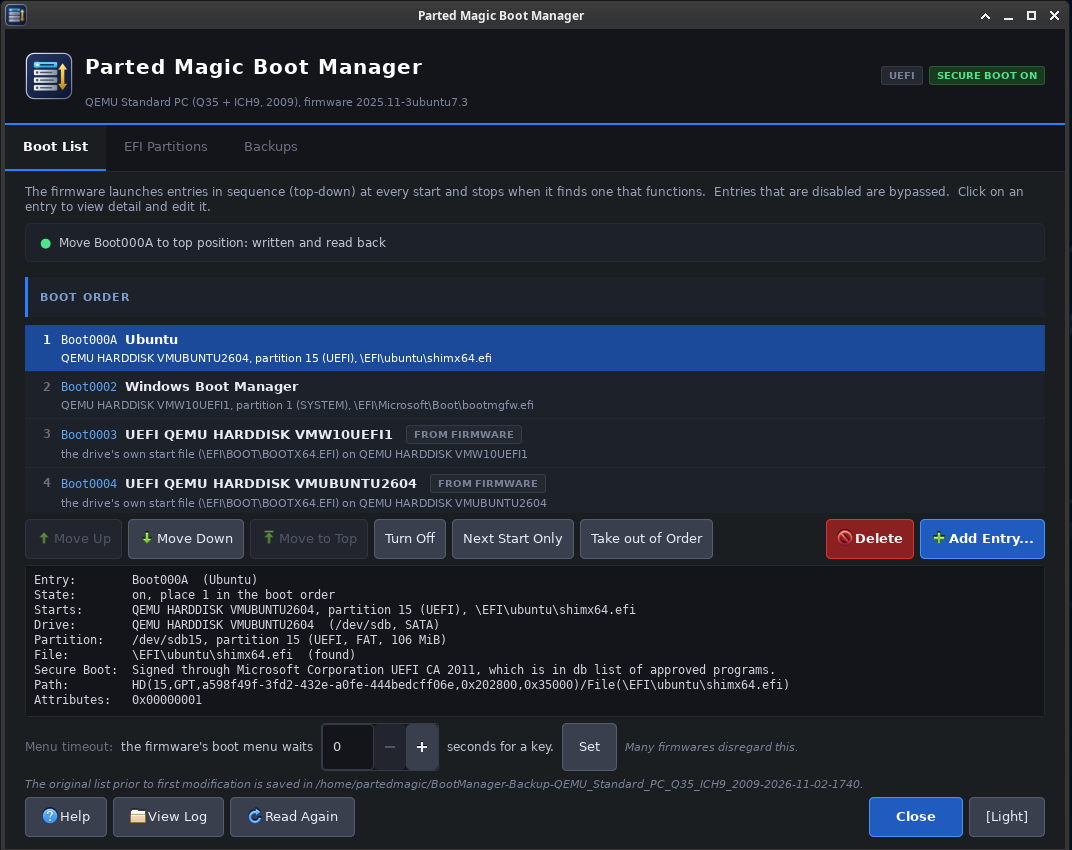
Parted Magic Boot Manager shows the firmware’s boot list on a UEFI computer: the entries the firmware can start, such as Windows, each Linux system, a USB drive and the network, and the order it tries them in. You can move entries, turn them off, start one once at the next restart, remove them or add new ones. Boot Manager backs up the whole list before the first change and reads every change back from the firmware.
Boot Manager is part of Parted Magic. It is in the System menu, and Parted Magic Boot Repair has a button that opens it. Like the other Parted Magic tools, it runs from the same USB drive.
Boot Manager Video Walkthrough
On This Page
- How the boot list works
- The window
- What the labels mean
- Changing the list
- The Secure Boot check
- Backups and the log
- In a terminal
- When something goes wrong
How the Boot List Works
Every UEFI computer keeps a list of numbered entries (Boot0000, Boot0001 and so on) and a boot order. At each start the firmware tries the entries in the boot order from the top down until one of them starts.
Before Boot Manager makes its first change, it saves the whole list to the backup folder. After every change it reads the result back from the firmware, shows it, and writes it to a log.
The Window
Boot Manager has three tabs:
- Boot List shows the entries in the boot order, then any entries that are not in it. Each line shows the entry’s place in the order, its number, its name and what it starts: the drive by model and serial number, the partition and the file. Click an entry to see its details below the list and to use the buttons that change it.
- EFI Partitions lists every EFI system partition on every connected drive, and every program on them that an entry can start. Add Entry makes a new entry for any of them.
- Backups saves a backup of the boot list, restores one, and sets the folder where backups go.
What the Labels Mean
- THIS BOOT: this entry started the computer this time.
- NEXT START: this entry starts the computer once, at the next start.
- OFF: the entry is turned off, and the firmware skips it.
- NOT IN ORDER: the entry exists but is not in the boot order.
- FROM FIRMWARE: the firmware made this entry itself. Many firmwares make one for each drive that can start, and make it again if you delete it.
- DRIVE NOT FOUND: no drive in the computer has the partition the entry names. The drive was removed, replaced or wiped. For an entry that names a whole drive, no drive is on the connector it names.
- FILE NOT FOUND: the partition is there, but the file the entry names is not. For an entry that names a whole drive, the drive is there but has no partitions, or no start file (
\EFI\BOOT\BOOTX64.EFI). - PARTITION MOVED: the partition starts or ends somewhere else than when the entry was made, for example after a move or a resize. Some firmwares still start it and some do not. Delete the entry and add it back from EFI Partitions.
- DRIVE MOVED: the drive is on a different connector than the entry says.
- DUPLICATE: another entry starts the same file.
- HIDDEN: the firmware does not show the entry in its boot menu.
- APP: the entry is marked as a firmware application rather than an operating system.
- SECURE BOOT WILL REFUSE: Secure Boot is on and the file is not signed with a key in the firmware’s db list, or it is revoked in the dbx list, so the firmware will not start it.
- DAMAGED: the entry cannot be read completely.
Changing the List
- Move Up, Move Down, Move to Top change the boot order. The firmware tries the top entry first.
- Turn Off and Turn On: an entry that is turned off stays in the list, and the firmware skips it.
- Next Start Only starts the entry once, at the next start, and then the boot order applies again. Boot Manager can restart the computer right away. Some firmware does not follow this request: a Microsoft Surface Laptop Go cleared it and started the first entry in the boot order. On a computer like that, use Move to Top or the firmware’s own boot menu.
- Delete removes the entry from the firmware. Boot Manager will not delete or turn off the last entry that starts a drive or the network, because the computer could then start nothing. It asks before it deletes the entry that started this boot.
- Add Entry makes an entry for a program on an EFI system partition. You choose its name and whether it goes at the top or the bottom of the boot order. An entry for Windows Boot Manager gets the same extra data Windows’ own bcdboot adds. For a Linux system with Secure Boot on, choose its shim (
shimx64.efi): GRUB on its own is signed by the Linux maker, which the firmware does not know. - Menu Timeout sets how many seconds the firmware’s boot menu waits for a key. Many firmwares ignore it.
The Secure Boot Check
For every program an entry starts, Boot Manager works out what Secure Boot will do with it, the way the firmware checks it:
- A program whose hash is in dbx, the list of revoked signatures, is refused.
- A program whose hash is in db, the list of approved signatures, is started.
- Otherwise the program’s signature must match its contents and lead to a certificate in db, and none of its certificates may be in dbx.
With Secure Boot off, the check is for information only. Parted Magic Secure Boot shows db and dbx and can change them.
Backups and the Log
Before the first change, Boot Manager saves the boot list to a folder named BootManager-Backup-<computer>-<date>, in the backup folder shown on the Backups tab. That folder starts out as the first drive mounted for writing, or Parted Magic’s home folder when there is none. Parted Magic’s home folder is in memory and is gone after a restart, so keep backups on a drive. A backup holds:
report.txt: the boot list in wordsefivars/: every Boot#### entry, BootOrder and Timeout, as Linux shows themmachine.json: the computer, the date and the Parted Magic version
Restore a Backup puts each saved entry back as it was saved, deletes entries the backup does not have, and then sets the boot order and the timeout as saved. It shows every change and asks first. A Next Start Only request is never restored.
Every change is logged in /home/partedmagic, in BootManager-Log-YYYY-MM-DD-HHMM.txt: the computer, the boot list before the first change, each change, and what the firmware read back.
In a Terminal
pmagic_bootmanager                       # open the window
pmagic_bootmanager --list                # the boot list, the findings and the EFI partitions
pmagic_bootmanager --backup [DIR]        # save a backup into DIR (default /home/partedmagic)
pmagic_bootmanager --restore DIR         # write a backup back: prints each change, asks for yes
pmagic_bootmanager --restore DIR --yes   # the same without the question, for scripts
pmagic_bootmanager --manual              # the manual
--list works over SSH.
When Something Goes Wrong
Parted Magic started in legacy BIOS mode
A UEFI boot list cannot be read in legacy BIOS mode. Restart, and choose the UEFI entry for your Parted Magic drive in the computer’s boot menu.
A change is gone after a restart
Some firmware adds its own entries or resets the order at every start. Some computers can lock the boot order, such as Lenovo’s Boot Order Lock. Some start certain devices, such as USB drives, by their own rules whatever the boot order says.
An entry you deleted comes back
The firmware made it (FROM FIRMWARE) and makes it again for each drive it can start. Turn it off or move it lower instead.
An entry disappears after a restart
Some firmware deletes entries for drives it cannot find.
The firmware refused a change
The firmware’s variable store may be full. Delete entries you do not use to free space.
Get Parted Magic Boot Manager
Parted Magic Boot Manager comes with Parted Magic, along with Parted Magic Boot Repair, VisParted, Clone and Secure Erase. One price covers unlimited disks and unlimited computers.