
Every tutorial about a command line partition manager carries the same warning in bold: be careful, there is no undo. The warning is honest. The classic tools write to the disk the moment you commit, with no preview of what the result will look like and no way to resume if something interrupts them. Here is a look at the classics — and at a different way to do this work in a terminal.
The classic terminal tools, and the trait they share
On Linux, fdisk and gdisk edit partition tables interactively and write everything when you press w. cfdisk wraps the same work in a menu. sfdisk can dump and restore a table from a script. parted goes further — it can resize filesystems — but it applies each command the moment you type it. On Windows, diskpart manages disks from an administrator prompt — Microsoft’s own reference documents every subcommand — and its clean command erases a drive’s partitioning without asking a single question. These tools have decades of service behind them. They are also the reason the tutorials shout. Each one executes immediately. None of them can show you the finished layout before it exists, and none of them can pick up where an interruption left off.
A command line partition manager that plans first
VisParted, the partition editor in Parted Magic, brings its full engine to the terminal. The flow is different from anything above. You describe the layout you want, and VisParted produces a plan — a concrete list of steps. It simulates the plan and shows you the resulting disk before anything runs. Applying the plan requires explicit confirmation, in words, of exactly what will be destroyed. During execution a journal records progress, and interrupted work can resume instead of starting over. When the plan finishes, VisParted re-reads the disk and attests that the final layout matches what it promised, slot for slot.
A full text interface, no graphics required
Alongside the plain commands, VisParted ships a complete text-mode interface that runs in any terminal. It is the same engine with the same wording — every refusal, every risk, every plan reads identically to the graphical version — and the full manual is built in. The screenshots below show it running on real hardware.
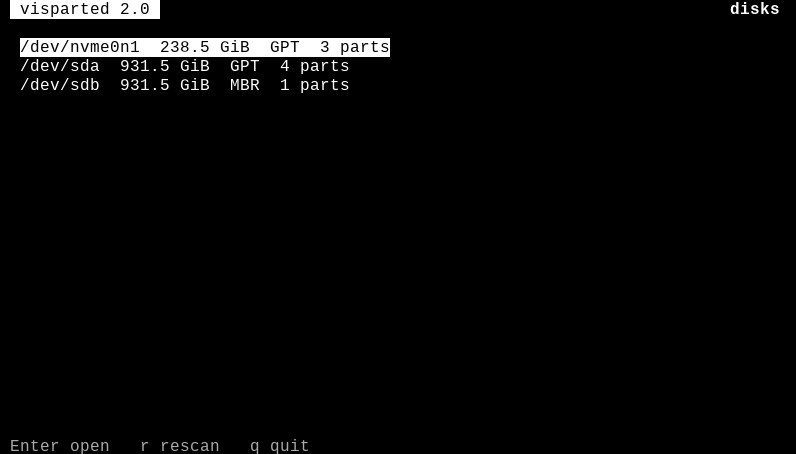
The disk list is where a session starts. One line per drive — an NVMe SSD and two spinning disks here — showing capacity, whether the table is GPT or MBR, and how many partitions each carries. Enter opens a drive, r rescans after plugging something in, q quits — all in a bare terminal. No syntax to remember before you can even look.
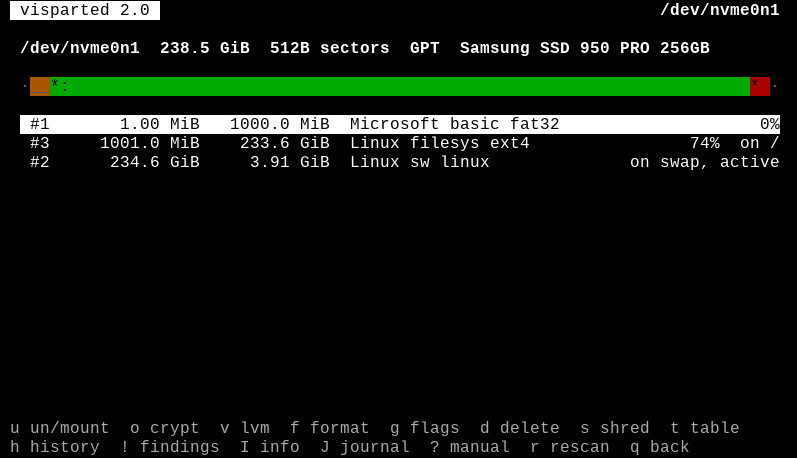
Opening a drive in the TUI shows everything that matters at a glance. The header names the hardware — here a Samsung SSD 950 PRO, its size, sector size, and table type. The bar draws the disk to scale. Below it, one row per partition: number, start, size, filesystem, and the live truth about each one — the ext4 root reports 74% used and mounted on /, and the swap partition says plainly that it is active. The bottom rows list the operations a single key away: mount and unmount, encryption, LVM, format, flags, delete, shred, the partition table, history, findings, the journal, and the complete built-in manual on the ? key.
Honest by design
The engine never guesses. When it cannot determine something about a disk, it says unknown. If it refuses an operation, it names the reason in plain words. And where a filesystem cannot do something — xfs cannot shrink, for example — the interface states the limit instead of hiding it. In a terminal, where the safety net is thinnest, that discipline matters most.
VisParted ships with every edition of Parted Magic. Details are on the store page, and more about the editor lives at partedmagic.com/partition-editor.