
Why Your Flash Drive Won’t Boot (Explained Like You’re 5)
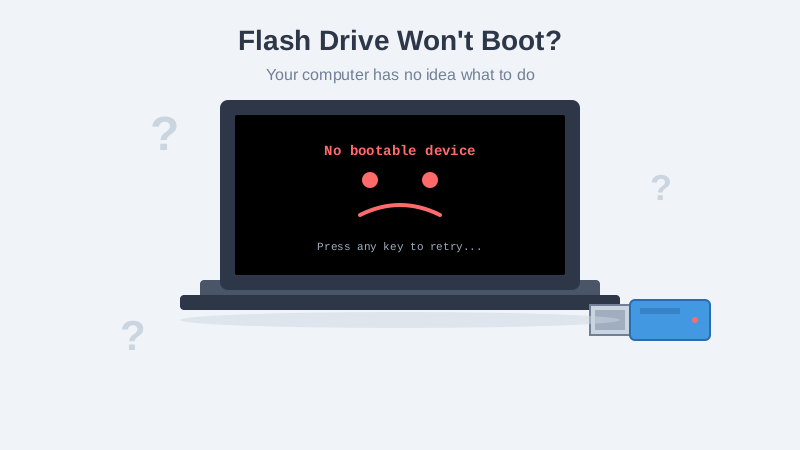
If your flash drive won’t boot Ubuntu, Parted Magic, or any other Linux distro, you’re not alone — and your computer isn’t broken. Let’s talk about why your flash drive won’t boot, and I’m going to explain it like you’re 5 so it actually makes sense. Ready? Let’s go!
Imagine Your Flash Drive is a House
When you put an operating system (like Parted Magic or Ubuntu) on a flash drive, you’re basically building a tiny house on it. But here’s the thing — a house needs a front door so people can get inside, right?
We call that “front door” a bootloader. It’s the very first thing your computer looks for when it tries to start up from your flash drive. No front door? Your flash drive won’t boot and your computer just stares at it like a confused puppy.
The Two Kinds of Houses: MBR and GPT
Now, there are two different ways to build this house, and this is where people get really confused.
MBR is the OLD way (like a tiny cottage). It’s been around forever. Older computers love it. It’s simple but has limits — kind of like a house that can only have 4 rooms.
GPT is the NEW way (like a modern apartment building). It’s fancier, can be way bigger, and newer computers prefer it.
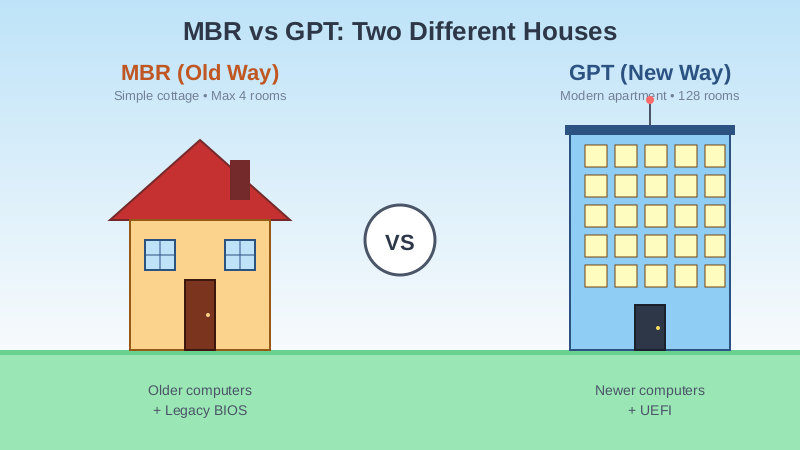
Here’s the super important part: your computer has to know which kind of house it’s looking for. If your computer is expecting a modern apartment building (GPT) but you built a tiny cottage (MBR), your flash drive won’t boot — your computer walks right past it!
BIOS vs UEFI: Two Different Mailmen
Think of your computer’s startup system as a mailman trying to deliver a package to your house.
- Legacy BIOS is the old mailman. He only knows how to find old-style cottages (MBR).
- UEFI is the new mailman. He prefers the modern apartment buildings (GPT) but sometimes can find cottages too if you tell him to.
If your flash drive is built one way and your computer is looking the other way… nothing happens. That’s the #1 reason a flash drive won’t boot, and it’s exactly what’s probably going wrong here!
Why Rufus Keeps Messing You Up
Okay, here’s the big one. When you use Rufus (or similar tools), it asks you a bunch of questions before it makes your flash drive. And if you click the wrong buttons, you build the wrong kind of house!
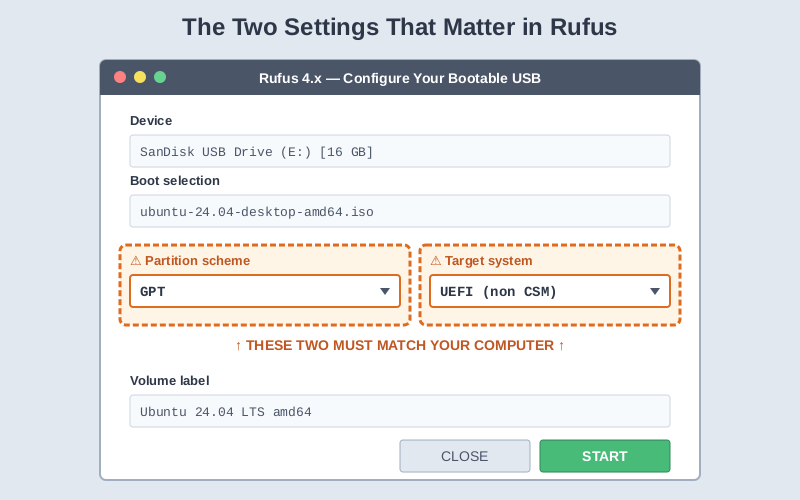
The two questions that matter most are:
- “Partition scheme” — This is asking: “Do you want a cottage (MBR) or an apartment building (GPT)?”
- “Target system” — This is asking: “Is your mailman the old one (BIOS) or the new one (UEFI)?”
If you just keep clicking whatever Rufus picks by default, or you guess randomly, your flash drive won’t boot because it doesn’t match your computer. Every. Single. Time.
The Easy Fix When Your Flash Drive Won’t Boot
Here’s what you need to do. Before you make the flash drive, find out what your computer wants:
If your computer is from roughly the last 10-12 years, it almost certainly uses UEFI and wants GPT. So in Rufus, you’d pick:
- Partition scheme: GPT
- Target system: UEFI (non CSM)
If your computer is older, or you know it uses Legacy BIOS, you’d pick:
- Partition scheme: MBR
- Target system: BIOS (or UEFI-CSM)
When in doubt, GPT + UEFI is the safest bet for any computer made after about 2012. Grab the latest Ubuntu ISO from the official site and try again with the correct settings. If you’ve worked through other tutorials on our site, like our related troubleshooting guide, you’ll find this approach feels familiar.
Other Reasons a Flash Drive Won’t Boot
Secure Boot is like a bouncer at the front door checking IDs. Some Linux distros don’t have the right ID, so the bouncer kicks them out. You may need to dive into your computer’s BIOS/UEFI settings and turn Secure Boot off.
The boot menu — Just plugging in the flash drive isn’t enough! You usually have to press a key when your computer starts up (often F12, F10, F2, or Esc — depends on your computer) to tell it “hey, look at the flash drive, not my hard drive!”
Bad ISO files — Sometimes the file you downloaded corrupts itself during the download. If your flash drive still won’t boot after doing everything right, download the ISO again from the official website.
Cheap or dying flash drives — Sometimes the flash drive itself is just bad. If you’ve tried everything and your flash drive won’t boot no matter what, try a different USB stick.
The Bottom Line
Your flash drive isn’t broken, and your computer isn’t broken. They’re just speaking different languages because you set up Rufus wrong. Match the partition scheme (GPT or MBR) and target (UEFI or BIOS) to what your computer expects, and your flash drive will boot like magic.
You got this! 🎉